

A Comprehensive Guide To Using Google Fonts With Wordpress Google Plugins
Choosing the right fonts for your website can enhance user interaction and readability in today's web design landscape. There are numerous Google fonts to download and it may seem overwhelming to pick the perfect ones, but thanks to Google plugins, that makes it all easier. Google Fonts has gained popularity among designers and developers in a user-friendly free font library.
This blog post will take you through the process of selecting and incorporating the best fonts on Google into your website regardless of whether you are an experienced developer or a beginner, this guide will provide you with the tools and knowledge on how to implement custom fonts in WordPress. Here, your website will stand out using stunning typography. When combined with wordpress and allows you to improve your website visually.
Understanding Google Fonts
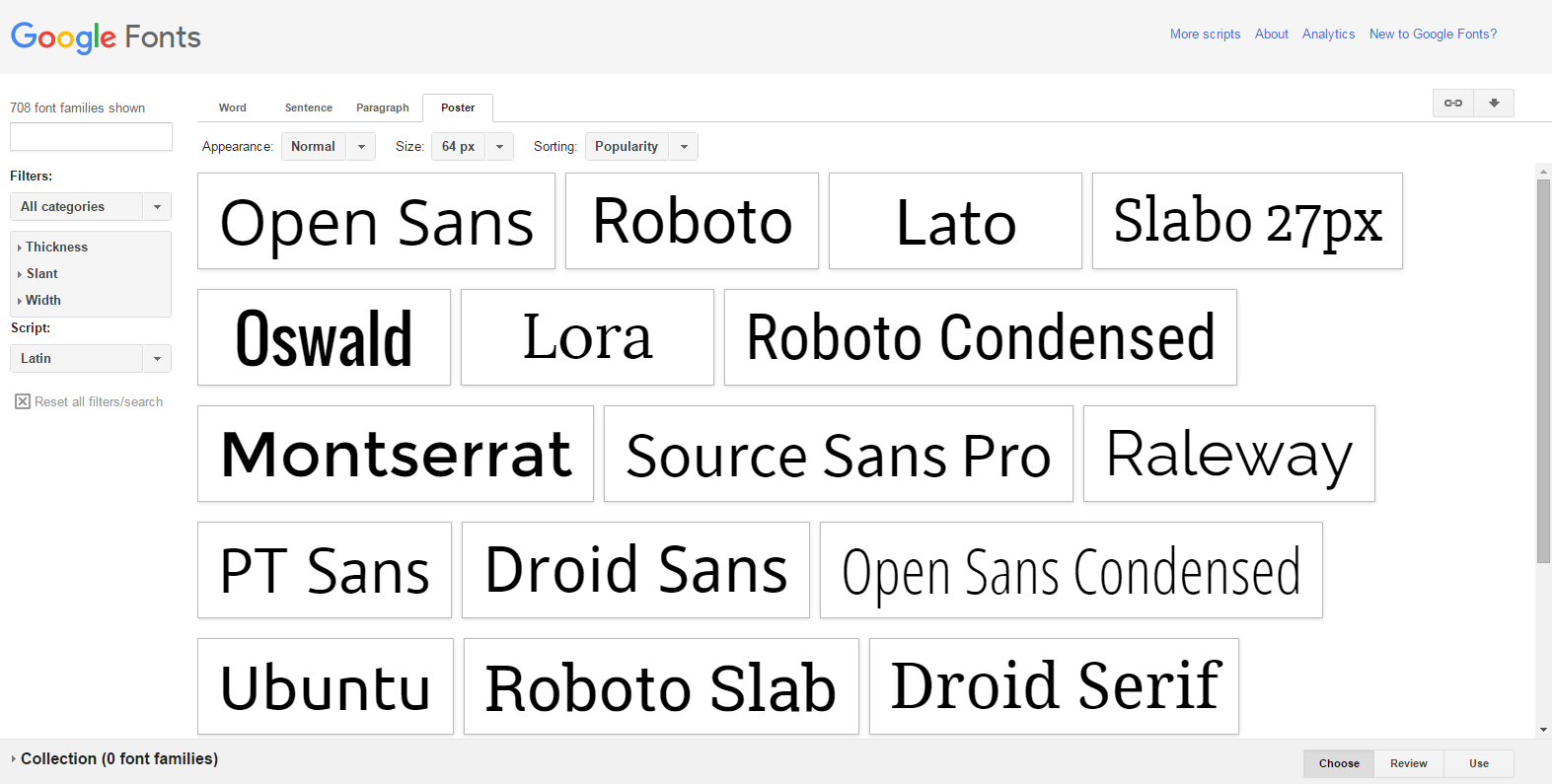
Anyone with an internet connection may access Google Fonts, a vast library of open-source typefaces maintained on Google's servers. Google typefaces is excellent for designers of all stripes, as it has more than a thousand typefaces to pick from, covering everything from traditional to modern designs.
Why Use Google Fonts?
Web designers and developers now rely on Google Fonts because it improves a site's usability and aesthetics.
- Versatility: The wide variety of fonts available is one of the main selling points of Google Fonts. Thanks to its extensive font library of over a thousand options, it meets the needs of many different types of designers and projects. If you want to give your website a more sophisticated appearance, whether it's more traditional or more contemporary, Google Fonts offers the right font for you.
- Performance: Hosted on Google's lightning-fast servers are Google Fonts. Not only does this make sure a considerable font collection is readily available, but it also helps pages load quickly. Website speed is improved, and users have a pleasant and trouble-free experience thanks to the fast loading of fonts.
- Ease of Use: One of Google Fonts' guiding principles is accessibility. Even people with little to no familiarity with code can complete the integration process efficiently. With Google Fonts, designers and website owners can quickly improve their typography with specialized plugins and user-friendly interfaces. It helps to create a polished and professional online appearance.
Integrating Google Fonts with WordPress
Plugins developed for the express aim of integrating Google Fonts into WordPress sites are necessary for your site. Numerous plugins are at your disposal, and they all provide something unique.
Choosing the Right Google Fonts Plugin
Choosing the correct Google Fonts plugin is crucial when improving your WordPress site's typography. For users of varying experience levels and tastes, a wide range of plugins are available, each with its unique combination of features and functionalities.
- Typekit Fonts for WordPress:
This plugin stands out because it is easy to use and understand. Typekit Fonts for WordPress makes it easy to integrate Google Fonts without worrying about coding. This plugin provides a user-friendly interface that is wholly integrated with the WordPress Customizer. This feature-rich environment is perfect for people who value an easy-to-use experience since it makes font selection and personalization a breeze.
- Easy Google Fonts:
The Easy Google Fonts plugin is another powerful choice for incorporating Google Fonts into your WordPress site. Aside from offering a variety of customization choices, this popular choice also works perfectly with the WordPress Customizer. This gives you a lot of control over your site's typography, so you can easily make it seem the way you want it to.
- Google Typography:
A convincing option for individuals who like a lightweight and straightforward approach is the Google Typography plugin. This plugin makes adding Google Fonts to your site easy. It provides a simple solution without a ton of options so that users will be able to handle it. Simple and easy to use, Google Typography is an excellent approach to improving your website's typography without making things more complicated than they need to be.
Installation and Activation
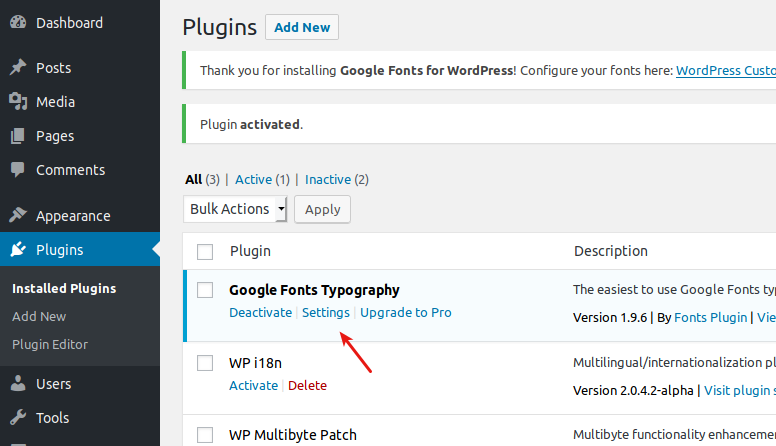
The following steps include installing and activating your selected plugin. Just follow these basic steps:
- Access the dashboard of your WordPress site.
- Find the "Plugins" menu and choose "Add New."
- Just type in the name of the Google Fonts plugin you choose.
- At the bottom of the page, you'll see an option to "Install Now" or "Activate" the plugin.
WordPress Font Customization using Google Fonts
Now that you have integrated Google Fonts into WordPress, customizing the typography of your WordPress site is a breeze.
Accessing the WordPress Customizer
If you're using WordPress, you can easily customize your fonts by integrating most Google Fonts plugins with the Customizer. To open the Personalizer:
- Visit the dashboard of your WordPress site.
- Find "Appearance" and then choose "Customize."
Selecting and Previewing Fonts
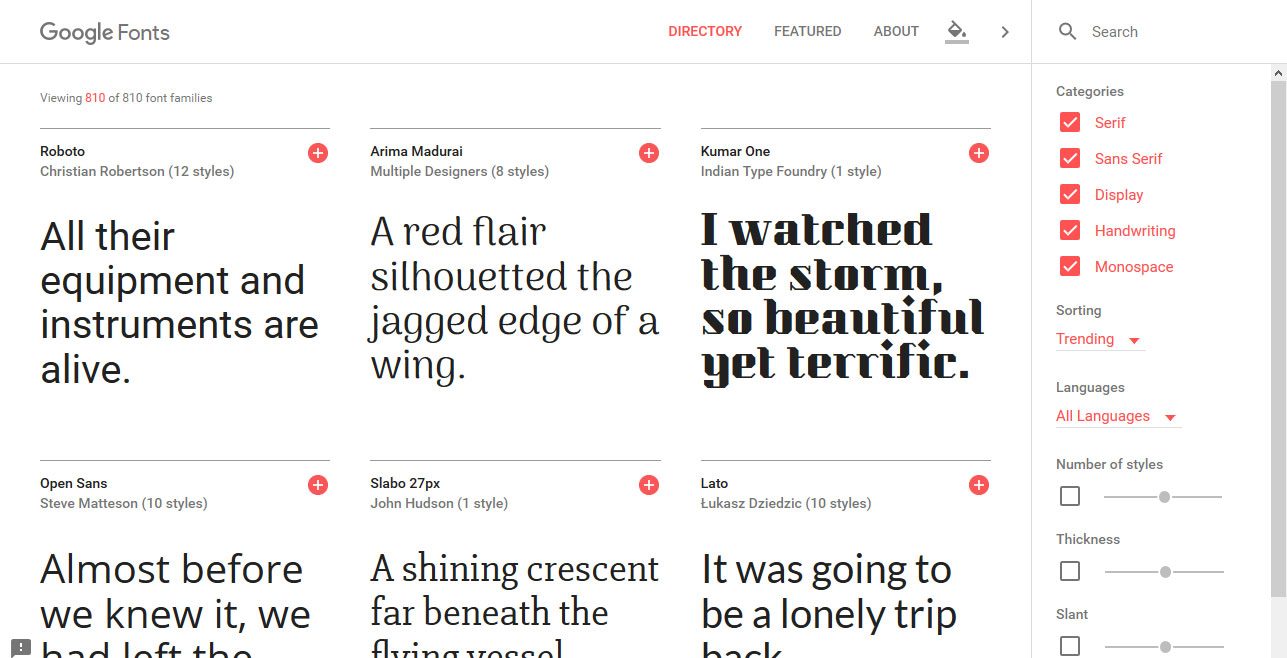
Finding the fonts or typography area in the WordPress Customizer is the first step in exploring the realm of typography—the exact location varies by plugin. You'll find many choices for personalizing anything from the headers to the body content when you get there.
The importance of choosing the right font for headers is critical. Your website's overall tone and identity should harmoniously complement your selected typeface. The real-time preview function in the Customizer is a lifesaver. You can make educated judgments about the visual harmony of your headlines by seeing how different fonts interact with your text in real time.
Pay close attention to the typefaces used for body content is also essential. Finding a typeface that works with the rest of the design language and improves readability is more important than picking any old font. To ensure your font scheme is appealing to your target audience, use the live preview feature to see how your changes affect your website's overall look and feel.
Adjusting Font Styles and Sizes
To suit your design tastes, you can usually adjust the size and style of the fonts using the Google Fonts plugins. Try out several combinations until you find one that works well and looks good.
- Font Weight: Put emphasis and hierarchy where it needs to be by adjusting the font thickness. Headings should utilize a bold font, while body content should use a softer weight.
- Font Size: Make sure that people can read your fonts on various devices. Font sizes may need to be adjusted for smaller displays. Therefore, it's essential to pay attention to responsive design issues.
Advanced Customization and CSS
Users who desire a greater degree of control over their website's typography can use sophisticated customization tools and CSS tweaks while adding Google Fonts into WordPress.
Adding Custom CSS for Google Fonts
If the plugin you're using allows for custom CSS, you may take the typographic customization to the next level.
- Access the WordPress Customizer.
- Find the part that talks about adding more CSS or custom code.
- Include your particular CSS rules for components like paragraphs, links, and headers.
Combining Google Fonts
Combining several Google Fonts on a website adds a one-of-a-kind and customized touch. To do this, you'll need to pick several fonts for various components to build a typographic palette that is both consistent and varied.
- To change the font of headers, body text, and other components, use the plugin's options or add custom CSS.
- Make sure the mix complements each other and the design as a whole.
Best Practices and Considerations
If you want your site to look good, there are a few things you need to do besides adding the proper Google Fonts into WordPress. These are all part of good web design practice.
- Performance Optimization:
It is essential to improve Google Fonts' performance to maintain quick loading times, even if they certainly add to an aesthetically pleasant design. The trick is to be careful when choosing typefaces, selecting just the ones that are required to keep the load on Google's servers to a minimum. To further improve site speed and minimize load times for repeat users, it is essential to utilize browser caching. This feature enables fonts to be saved locally after the initial download.
- Mobile Responsiveness:
Now more than ever, it's crucial to test chosen Google Fonts on several platforms to ensure they look good and are legible on mobile and desktop computers. To provide a consistent user experience and promote readability on smaller displays, it is necessary to make significant alterations to font sizes and styles, stressing responsive design principles.
- Accessibility:
To ensure that everyone, even those with vision problems, can read and understand your material, it is crucial to consider how accessible the Google Fonts you choose are. Using enough line space and typefaces with high contrast is critical for legibility. To create a more welcoming and accessible design for all users, avoiding using too ornate typefaces is recommended.
Conclusion
In the above blog, we've discussed Google fonts, how to effectively use the best fonts on Google, and integrating them with wordpress Google plugins. Here, you may easily enhance your in-built customization tools with a plethora of options available, and improve your website’s typography by integrating Google fonts with wordpress specialized plugins. By carefully selecting and integrating Google Fonts, you can significantly enhance the visual appeal and readability of your website.
Whether you're an experienced developer or a beginner, the tools and techniques outlined in this blog provide a straightforward path to implementing custom fonts in WordPress. Talking about Themes Pride, all these plugins are available and are compatible with the Premium WordPress themes by ThemesPride, so you can create a website and use the plugin seamlessly by creating a more engaging user experience. With Themes Pride, unlock the full potential of your website's design if you want your website to stand out.
Search
Blog Categories
WordPress Theme Bundle

Bestseller Themes